<?xml version="1.0" encoding="UTF-8"?>
<?xml-stylesheet type="text/xsl" href="/rss/atom-styles.xsl"?>
<feed xmlns="http://www.w3.org/2005/Atom">
  <title>Litos</title>
  <subtitle>Litos is a modern blogging theme built on Astro.js, designed for developers. It supports multiple post layouts, photo displays, project displays, and more, providing an elegant user experience and powerful customization capabilities.</subtitle>
  <link href="https://mps-blog.vercel.app//atom.xml" rel="self" type="application/atom+xml"/>
  <link href="https://mps-blog.vercel.app/" rel="alternate" type="text/html"/>
  <updated>2026-04-14T08:21:04.534Z</updated>
  <language>zh</language>
  <id>https://mps-blog.vercel.app//</id>
  <author>
    <name>夜猫子Ai手记</name>
    <uri>https://mps-blog.vercel.app/</uri>
  </author>
  <generator uri="https://github.com/Dnzzk2/Litos" version="5.0">Astro Litos Theme</generator>
  <rights>Copyright © 2026 夜猫子Ai手记</rights>
  
  <entry>
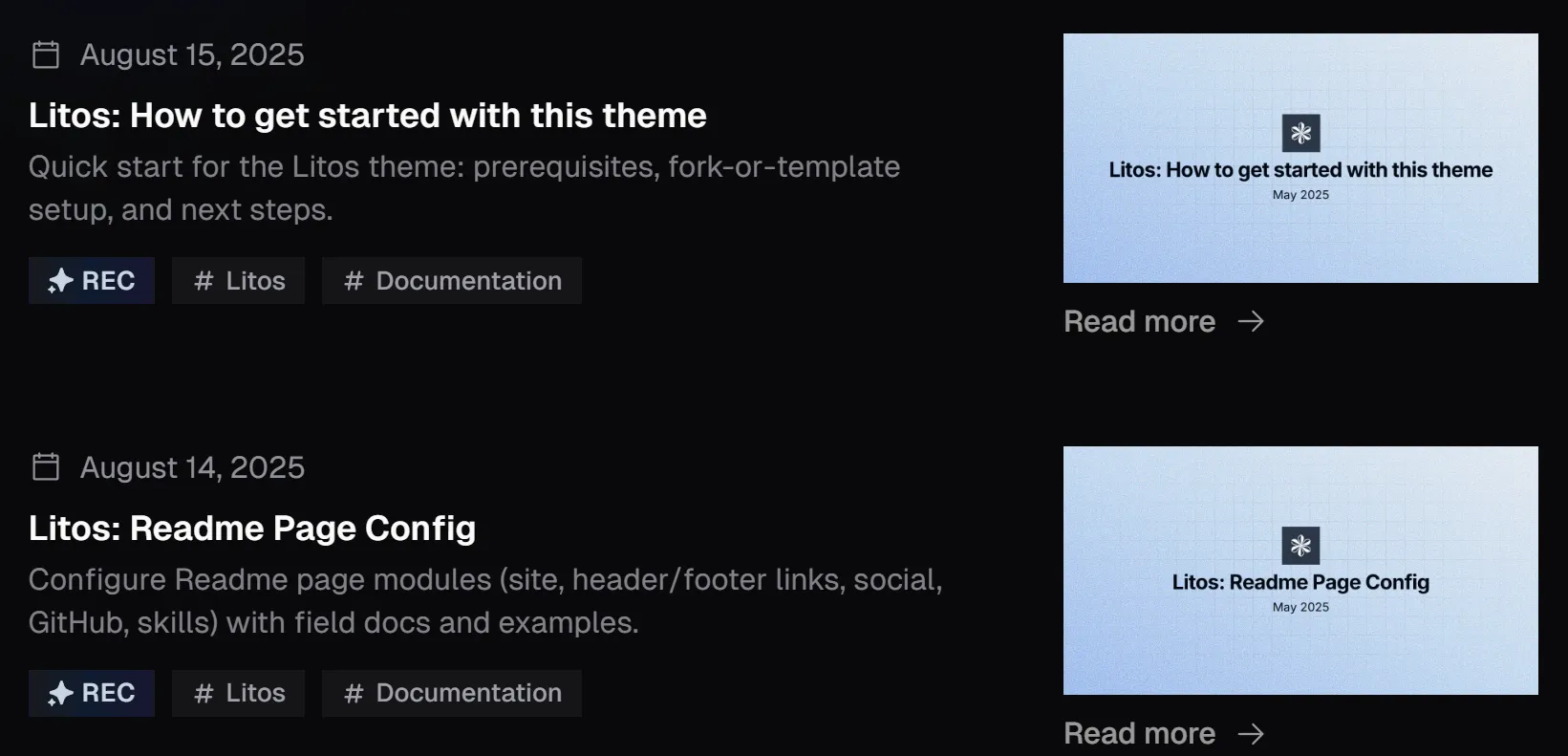
    <title>如何开始使用此主题</title>
    <link href="https://mps-blog.vercel.app//posts/start" rel="alternate" type="text/html"/>
    <id>https://mps-blog.vercel.app//posts/start</id>
    <updated>2025-08-15T00:00:00.000Z</updated>
    <published>2025-08-15T00:00:00.000Z</published>
    <author>
      <name>夜猫子Ai手记</name>
    </author>
    <summary type="text">Litos 主题快速入门指南：前置条件、Fork 或模板设置以及后续步骤。</summary>
    <content type="html"><![CDATA[<img src="https://mps-blog.vercel.app/_astro/cover.7-E_J0u9_Z19SPhO.webp" alt="如何开始使用此主题" style="width: 100%; height: auto; margin-bottom: 1em;" />
<p>这个主题是我在业余时间开发的，文档可能不够全面，但我会尽力解释。</p>
<h3>前提条件</h3>
<p>在开始之前，请确保你的开发环境中已安装以下工具：</p>
<ul>
<li><a href="https://nodejs.org/en/download" rel="noopener noreferrer" target="_blank">Node.js</a> - 运行开发环境所必需。</li>
<li><a href="https://pnpm.io/installation" rel="noopener noreferrer" target="_blank">pnpm</a> - 我们首选的包管理器，用于依赖管理。</li>
<li><a href="https://git-scm.com/" rel="noopener noreferrer" target="_blank">Git</a> - 用于版本控制和项目管理。</li>
<li><a href="https://code.visualstudio.com/" rel="noopener noreferrer" target="_blank">VS Code</a> - 推荐使用的代码编辑器，开发体验极佳。</li>
</ul>
<div><div><div></div><div>NOTE</div></div><div><p>如果你有其他替代工具，则不需要遵循本文中的推荐。</p></div></div>
<h3>启动项目</h3>
<p>有两种方式：</p>
<ul>
<li><a href="https://github.com/Dnzzk2/Litos/fork" rel="noopener noreferrer" target="_blank">Fork 仓库</a></li>
<li><a href="https://github.com/Dnzzk2/Litos/generate" rel="noopener noreferrer" target="_blank">使用此模板</a> - 将来会推出无内容分支，无需删除和替换内容。</li>
</ul>
<p>获取你自己的仓库后，可以将其克隆到本地。</p>
<h3>更新主题</h3>
<p>当主题发布新版本时，你可以按照以下步骤拉取最新更改而不丢失内容：</p>
<p><strong>1. 添加 upstream 远程（只需一次）</strong></p>
<pre><code>git remote add upstream https://github.com/Dnzzk2/Litos.git
</code></pre>
<p><strong>2. 获取并合并最新的主题</strong></p>
<pre><code>git fetch upstream
git merge upstream/main --no-edit
</code></pre>
<p><strong>3. 解决冲突（如有）</strong></p>
<p>冲突通常只发生在你修改过的文件中，例如 <code>src/config.ts</code>。在这种情况下，只需保留你自己的配置，接受其余的主题更新即可。</p>
<div><div><div></div><div>TIP</div></div><div><p>为减少冲突，请尽量只修改以下文件：</p><ul>
<li><code>src/config.ts</code> — 站点配置</li>
<li><code>src/content/</code> — 你的文章和项目</li>
<li><code>public/</code> — 你的静态资源（favicon、图片等）</li>
<li><code>.env</code> — 环境变量</li>
</ul><p>不要直接修改主题源文件（组件、样式、布局）。这样可以确保每次更新都顺利。</p></div></div>
<h3>结束</h3>
<p>后续文档将分为多个页面，如 readme、posts…</p>]]></content>
    <category term="Litos" />
    <category term="文档" />
  </entry>
  <entry>
    <title>README 页面配置</title>
    <link href="https://mps-blog.vercel.app//posts/readme" rel="alternate" type="text/html"/>
    <id>https://mps-blog.vercel.app//posts/readme</id>
    <updated>2025-08-14T00:00:00.000Z</updated>
    <published>2025-08-14T00:00:00.000Z</published>
    <author>
      <name>夜猫子Ai手记</name>
    </author>
    <summary type="text">配置 README 页面模块（站点、页眉/页脚链接、社交、GitHub、技能），包含字段文档和示例。</summary>
    <content type="html"><![CDATA[<img src="https://mps-blog.vercel.app/_astro/cover.DMtFtdkY_ZeJxeL.webp" alt="README 页面配置" style="width: 100%; height: auto; margin-bottom: 1em;" />
<p>以下文件与此文档兼容：</p>
<ul>
<li><code>src/pages/index.astro</code> - readme 页面。</li>
<li><code>src/config.ts</code> - readme 页面配置。</li>
<li><code>src/components/base</code> - 大部分组件来自这里。</li>
</ul>
<h3>站点配置</h3>
<p>配置基本站点信息：</p>
<pre><code>export const SITE: Site = {
  title: 'Litos',
  description: 'Litos is a blog theme built with Astro.js and 夜猫子Ai手记.',
  website: 'https://litos.vercel.app/',
  lang: 'en',
  base: '/',
  author: '夜猫子Ai手记',
  ogImage: '/og-image.jpg',
}
</code></pre>


<table><thead><tr><th>属性</th><th>描述</th></tr></thead><tbody><tr><td>title</td><td>站点的标题。</td></tr><tr><td>description</td><td>站点的描述。</td></tr><tr><td>website</td><td>你的最终部署 URL。Astro 使用此完整 URL 在最终构建中生成网站地图和规范 URL。强烈建议设置此配置以充分利用 Astro。</td></tr><tr><td>lang</td><td>lang 全局属性有助于定义元素的语言。</td></tr><tr><td>base</td><td>部署的基础路径。Astro 将使用此路径作为开发环境和生产构建中页面和资源的根目录。 <br /> 当设置为 <code>/docs</code> 时，astro dev 将在 <code>/docs</code> 启动你的服务器。</td></tr><tr><td>author</td><td>站点的作者。</td></tr><tr><td>ogImage</td><td>站点的 Open Graph 图片，但在具体文章页面，你可以使用其他 ogImage。</td></tr></tbody></table>
<h3>顶部链接</h3>
<p>顶部跳转链接组件配置：</p>
<pre><code>export const HEADER_LINKS: Link[] = [
  {
    name: 'Posts',
    url: '/posts',
  },
]
</code></pre>
<h3>底部链接</h3>
<p>底部链接组件配置：</p>
<pre><code>export const FOOTER_LINKS: Link[] = [
  {
    name: 'Readme',
    url: '/',
  },
]
</code></pre>
<h3>社交链接</h3>
<p>在 readme 页面中，你可以在主题介绍下方看到一排图标，可以通过以下方式配置。图标来自 <a href="https://icon-sets.iconify.design/" rel="noopener noreferrer" target="_blank">Iconify</a>。</p>
<pre><code>export const SOCIAL_LINKS: SocialLink[] = [
  {
    name: 'github',
    url: 'https://github.com/yourname',
    icon: 'icon-[ri--github-fill]',
    count: 11,
  },
  {
    name: 'twitter',
    url: 'https://x.com/yourname',
    icon: 'icon-[ri--twitter-x-fill]',
  },
]
</code></pre>


<table><thead><tr><th>属性</th><th>描述</th></tr></thead><tbody><tr><td>name</td><td>社交链接的名称。</td></tr><tr><td>url</td><td>社交链接的 URL。</td></tr><tr><td>icon</td><td>社交链接的图标。</td></tr><tr><td>count</td><td>该社交媒体的关注者数量。这是一个 <code>可选</code> 字段。</td></tr></tbody></table>
<h3>聚光灯</h3>


<table><thead><tr><th>属性</th><th>描述</th></tr></thead><tbody><tr><td>ENABLED</td><td>是否启用 GitHub 功能。</td></tr><tr><td>GITHUB_USERNAME</td><td>用于获取数据的 GitHub 用户名。</td></tr><tr><td>TOOLTIP_ENABLED</td><td>是否启用 GitHub 提示框（鼠标悬停卡片）功能。</td></tr></tbody></table>
<h3>技能展示</h3>
<p>在 readme 页面中，你可以看到一个技能展示区域，可以通过配置以下代码来展示你的技能：</p>
<pre><code>export const SKILLSSHOWCASE_CONFIG: SkillsShowcaseConfig = {
  SKILLS_ENABLED: true,
  SKILLS_DATA: [
    {
      direction: 'left',
      skills: [
        {
          name: 'JavaScript',
          icon: 'icon-[mdi--language-javascript]',
        },
        {
          name: 'CSS',
          icon: 'icon-[mdi--language-css3]',
        },
        {
          name: 'HTML',
          icon: 'icon-[mdi--language-html5]',
        },
        {
          name: 'TypeScript',
          icon: 'icon-[mdi--language-typescript]',
        },
      ],
    },
  ],
}
</code></pre>


<table><thead><tr><th>属性</th><th>描述</th></tr></thead><tbody><tr><td>SKILLS_ENABLED</td><td>是否启用技能展示功能。</td></tr><tr><td>SKILLS_DATA</td><td>技能数据。一个对象代表一行。</td></tr><tr><td>    direction</td><td>每个动画在两个方向运行：<code>left</code> 和 <code>right</code>。</td></tr><tr><td>    skills</td><td>技能数组。</td></tr><tr><td>        name</td><td>技能名称。</td></tr><tr><td>        icon</td><td>技能图标。图标来自 <a href="https://icon-sets.iconify.design/" rel="noopener noreferrer" target="_blank">Iconify</a>。</td></tr></tbody></table>
<div><div><div></div><div>TIP</div></div><div><p>建议在本地运行项目以查看效果。建议每行至少展示三个不同的技能。</p></div></div>
<h3>文章</h3>
<p>这里主要展示置顶文章。如果没有置顶文章，我们将根据 <code>POSTS_CONFIG</code> 显示最新 <code>size</code> 数量的文章。</p>]]></content>
    <category term="Litos" />
    <category term="文档" />
  </entry>
  <entry>
    <title>文章页面配置</title>
    <link href="https://mps-blog.vercel.app//posts/posts" rel="alternate" type="text/html"/>
    <id>https://mps-blog.vercel.app//posts/posts</id>
    <updated>2025-08-13T00:00:00.000Z</updated>
    <published>2025-08-13T00:00:00.000Z</published>
    <author>
      <name>夜猫子Ai手记</name>
    </author>
    <summary type="text">完整的文章配置指南：字段、列表样式、文章元数据布局、OG 图片处理、frontmatter 示例、markdown 语法和 expressive-code 配置。</summary>
    <content type="html"><![CDATA[<img src="https://mps-blog.vercel.app/_astro/cover.DuEOlrCu_2kyEMp.webp" alt="文章页面配置" style="width: 100%; height: auto; margin-bottom: 1em;" />
<p>以下文件与此文档兼容：</p>
<ul>
<li><code>src/pages/posts/[...id].astro</code> - 文章具体内容显示页面。</li>
<li><code>src/pages/posts/[...page].astro</code> - 文章列表页面。</li>
<li><code>src/content/posts</code> - 文章集合</li>
<li><code>src/content.config.ts</code> - 文章数据集和前置数据配置。</li>
<li><code>ec.config.mjs</code> - expressiveCode 配置。</li>
<li><code>plugins/index.ts</code> - remark 和 rehype 插件。</li>
<li><code>src/config.ts</code> - 文章页面配置。</li>
<li><code>src/components/posts</code> - 大部分组件来自这里。</li>
</ul>
<h3>文章页面配置</h3>
<p>文章页面配置如下：</p>
<pre><code>export const POSTS_CONFIG: PostConfig = {
  title: 'Posts',
  description: 'Posts by 夜猫子Ai手记',
  introduce: 'Here, I will share the usage instructions for this theme to help you quickly use it.',
  author: '夜猫子Ai手记',
  homePageConfig: {
    size: 3,
    type: 'compact',
  },
  postPageConfig: {
    size: 10,
    type: 'minimal',
  },
  tagsPageConfig: {
    size: 10,
    type: 'time-line',
  },
  ogImageUseCover: false,
  postType: 'metaOnly',
  imageDarkenInDark: true,
  readMoreText: 'Read more',
  prevPageText: 'Previous',
  nextPageText: 'Next',
  tocText: 'On this page',
  backToPostsText: 'Back to Posts',
  nextPostText: 'Next Post',
  prevPostText: 'Previous Post',
  recommendText: 'REC',
}
</code></pre>
<p>以下是一些配置属性的详细说明，请参考下表。</p>


<table><thead><tr><th>属性</th><th>描述</th></tr></thead><tbody><tr><td>title</td><td>浏览器标签和列表页面上显示的标题。</td></tr><tr><td>description</td><td>列表页面 <code>head</code> 元素中的元数据描述。</td></tr><tr><td>introduce</td><td>列表页面标题下方的介绍。</td></tr><tr><td>author</td><td>文章的作者。</td></tr><tr><td>homePageConfig</td><td><strong>readme 页面</strong> 配置。</td></tr><tr><td>    size</td><td>在 <strong>readme 页面</strong> 上显示的文章数量。</td></tr><tr><td>    type</td><td>在 <strong>阅读页面</strong>，列表显示数据的样式，<code>compact</code>、<code>minimal</code>、<code>time-line</code> 或 <code>image</code>。</td></tr><tr><td>    coverLayout <br />    (可选)</td><td>当类型为 image 时，此属性可以设置图片在卡片中的位置。可以选择 left 或 right。如果未设置，将交替出现在左右两侧。</td></tr><tr><td>postPageConfig</td><td>与上述 homePageConfig 相同，但 size 表示基础页数，用于 <strong>文章页面</strong>。</td></tr><tr><td>tagsPageConfig</td><td>与上述 homePageConfig 相同，但 size 表示基础页数，用于 <strong>标签页面</strong>。</td></tr><tr><td>ogImageUseCover</td><td>是否使用封面图片作为 Open Graph 图片。</td></tr><tr><td>postType</td><td>文章具体内容显示页面顶部元数据的默认显示组件。你可以配置 <code>metaOnly</code>、<code>coverSplit</code>、<code>coverTop</code>。 <br /> 可以被内容的前置数据设置替换。</td></tr><tr><td>imageDarkenInDark</td><td>是否在深色模式下调暗图片。</td></tr><tr><td>readMoreText</td><td>阅读更多按钮的文本。</td></tr><tr><td>prevPageText</td><td>上一页按钮的文本。</td></tr><tr><td>nextPageText</td><td>下一页按钮的文本。</td></tr><tr><td>tocText</td><td>目录的标题文本</td></tr><tr><td>backToPostsText</td><td>返回文章列表按钮的文本。</td></tr><tr><td>nextPostText</td><td>下一篇文章按钮的文本。</td></tr><tr><td>prevPostText</td><td>上一篇文章按钮的文本。</td></tr><tr><td>recommendText</td><td>推荐标签的文本。</td></tr></tbody></table>
<h4>Type 和 PostType</h4>
<p>在上面的文档中，我们提到了可配置的 <code>types</code> 用于配置 readme 页面、文章页面和标签页面的列表数据显示样式，以及可配置的 <code>postTypes</code> 用于在文章内容页面顶部显示元数据。</p>
<p>以下是 <code>type</code> 的具体样式展示：</p>
<figure><img src="https://mps-blog.vercel.app/_astro/compact-black.DMCWHrjD_2evXXq.webp" alt="" class="img-light" /><figcaption>compact</figcaption></figure>
<figure><img src="https://mps-blog.vercel.app/_astro/timeLine-black.jDSZqIn4_Z2hp2Yv.webp" alt="" class="img-light" /><figcaption>time-line</figcaption></figure>
<figure><img src="https://mps-blog.vercel.app/_astro/minimal-black.Dxsrn9wb_1l0yun.webp" alt="" class="img-light" /><figcaption>minimal</figcaption></figure>
<figure><img src="https://mps-blog.vercel.app/_astro/image-black.BeMdDApH_ZV1j5H.webp" alt="" class="img-light" /><figcaption>image</figcaption></figure>
<p>以下是 <code>postType</code> 的具体样式展示：</p>
<figure><img src="https://mps-blog.vercel.app/_astro/metaOnly-black.CAi7aUXH_2gkuT1.webp" alt="" class="img-light" /><figcaption>metaOnly</figcaption></figure>
<figure><img src="https://mps-blog.vercel.app/_astro/coverTop-black.Cji_8Dx0_2wd6Gt.webp" alt="" class="img-light" /><figcaption>coverTop</figcaption></figure>
<figure><img src="https://mps-blog.vercel.app/_astro/coverSplit-black.BGSoc6qf_1NdheF.webp" alt="" class="img-light" /><figcaption>coverSplit</figcaption></figure>
<h3>前置数据</h3>
<p>讨论完文章列表和整体设计后，让我们一起看看文章的内容。这些内容都在 <code>src/content/posts</code> 文件夹中。</p>
<p>下面是文章内容的前置数据：</p>
<pre><code>---
title: 'Litos: Posts Page Config'
description: ''
pubDate: 2025-08-13
author: '夜猫子Ai手记'
recommend: true
tags: ['Litos', 'Documentation']
---
</code></pre>
<p>你可以通过以下代码配置文章内容的前置数据：</p>
<pre><code>const posts = defineCollection({
  loader: glob({
    pattern: '**/*.{md,mdx}',
    base: './src/content/posts',
  }),
  schema: ({ image }) =&gt;
    z
      .object({
        title: z.string(),
        description: z.string(),
        pubDate: z.date(),
        tags: z.array(z.string()).optional(),
        updatedDate: z.date().optional(),
        author: z.string().default(POSTS_CONFIG.author),
        cover: image().optional(),
        ogImage: image().optional(),
        recommend: z.boolean().default(false),
        postType: z.custom&lt;PostType&gt;().optional(),
        coverLayout: z.custom&lt;CoverLayout&gt;().optional(),
        pinned: z.boolean().default(false),
        draft: z.boolean().default(false),
      })
      .transform((data) =&gt; ({
        ...data,
        ogImage: data.ogImage ? data.ogImage : POSTS_CONFIG.ogImageUseCover &amp;&amp; data.cover ? data.cover : undefined,
      })),
})
</code></pre>


<table><thead><tr><th>属性</th><th>描述</th></tr></thead><tbody><tr><td>title</td><td>文章标题。</td></tr><tr><td>description</td><td>文章内容的概述，也用于 SEO。</td></tr><tr><td>pubDate</td><td>文章发布日期。</td></tr><tr><td>tags</td><td>文章标签列表</td></tr><tr><td>updatedDate</td><td>文章最后更新日期。 <br /> 在文章列表排序中，优先级高于发布日期。</td></tr><tr><td>author</td><td>文章作者。</td></tr><tr><td>cover</td><td>当列表类型为 <code>image</code> 时，用于显示的封面图片，或 postType 为 <code>coverSplit</code> 或 <code>coverTop</code> 时在顶部显示的封面图片</td></tr><tr><td>ogImage</td><td>文章的 Open Graph 图片。</td></tr><tr><td>recommend</td><td>是否显示推荐标签。</td></tr><tr><td>postType</td><td>文章具体内容显示页面顶部元数据的显示组件。你可以配置 <code>metaOnly</code>、<code>coverSplit</code>、<code>coverTop</code></td></tr><tr><td>coverLayout</td><td>当类型为 <code>image</code> 时，此属性可以设置图片在卡片中的位置。可以选择 <code>left</code> 或 <code>right</code>。如果未设置，将交替出现在左右两侧。</td></tr><tr><td>pinned</td><td>是否置顶文章。</td></tr><tr><td>draft</td><td>是否隐藏文章。</td></tr></tbody></table>
<div><div><div></div><div>TIP</div></div><div><p>关于 <code>cover</code> 和 <code>ogImage</code>。</p><p><code>Cover</code> 和 <code>ogImage</code> 是两个独立的属性，连接它们的唯一方式是 <code>POSTS_CONFIG.ogImageUseCover</code>。</p><p><code>POSTS_CONFIG.ogImageUseCover</code> 默认启用，所以你只需要写 <code>cover</code> 就可以同时配置 <code>ogImage</code>。这适用于 <code>cover</code> 和 <code>ogImage</code> 相同的情况。如果你想自定义 <code>ogImage</code>，可以单独设置。</p><p>如果未启用 <code>POSTS_CONFIG.ogImageUseCover</code>，需要单独设置 <code>ogImage</code>。如果不设置，将使用站点的 <code>ogImage</code> 作为后备。</p><p><code>POSTS_CONFIG.ogImageUseCover</code> &gt; <code>cover</code></p></div></div>
<hr />
<h3>语法和代码样式</h3>
<p>本指南将通过一个 3 天城市旅行行程来展示如何使用 Markdown 格式化文本。在规划行程的同时学习 Markdown！</p>
<h4>标题级别</h4>
<p>对于旅行笔记，多级标题有助于组织天数、时间块和提示：</p>
<h4>文本格式化</h4>
<p>撰写旅行笔记时，突出重要信息：</p>
<p><strong>必看景点</strong> 应加粗
<em>灵活时间</em> 使用斜体
<strong><em>重要警告</em></strong> 可以同时使用
可选绕路 使用删除线</p>
<h4>行李清单（无序列表）</h4>
<ul>
<li>护照、签证</li>
<li>相机、备用电池
<ul>
<li>带一个快充充电器</li>
<li>备用 SD 卡</li>
</ul>
</li>
<li>可重复使用的水瓶</li>
<li>公共交通卡</li>
</ul>
<h4>第一天行程（有序列表）</h4>
<ol>
<li>机场 → 酒店入住</li>
<li>老城徒步之旅</li>
<li>夜间游船
<ol>
<li>提前 15 分钟到达</li>
<li>在 B 入口排队</li>
<li>推荐靠窗座位</li>
</ol>
</li>
</ol>
<pre><code>1. Airport → hotel check-in
2. Old Town walking tour
3. Evening river cruise
   1. Arrive 15 min early
   2. Queue at Gate B
   3. Window seats recommended
</code></pre>
<h4>Blockquotes</h4>
<blockquote><p>Traveler tip: Buy a 24‑hour metro pass if you plan 3+ rides in a day.</p><p>Save the hotel address in offline maps for quick access.</p></blockquote>
<pre><code>&gt; Traveler tip: Buy a 24‑hour metro pass if you plan 3+ rides in a day.
&gt;
&gt; Save the hotel address in offline maps for quick access.
</code></pre>
<h4>代码块</h4>
<p>使用简单的代码来估算预算：</p>
<pre><code>type Budget = { flight: number; hotel: number; meals: number; transport: number }
export const total = (b: Budget) =&gt; b.flight + b.hotel + b.meals + b.transport

console.log(total({ flight: 1200, hotel: 450, meals: 180, transport: 60 })) // 1890
</code></pre>
<h4>表格</h4>
<p>示例行程：</p>


<table><thead><tr><th>时间</th><th>地点</th><th>备注</th></tr></thead><tbody><tr><td>09&lt;00&gt;</td><td>老城广场</td><td>导览徒步之旅</td></tr><tr><td>12&lt;30&gt;</td><td>河滨咖啡馆</td><td>午餐 + 短暂休息</td></tr><tr><td>18&lt;00&gt;</td><td>城市码头</td><td>日落游船</td></tr></tbody></table>
<h4>链接和图片</h4>
<p>更多提示：<a href="https://example.com/travel" rel="noopener noreferrer" target="_blank">官方旅游委员会</a></p>
<p>旅行照片：
<img src="https://mps-blog.vercel.app/_astro/home.DfiDpdST_gTJAi.webp" alt="城市天际线" style="width:50%" /></p>
<h4>水平分隔线</h4>
<hr />
<h4>行内代码</h4>
<p>地铁 A 线在高峰期每 <code>5-7</code> 分钟一班。</p>
<h4>数学公式</h4>
<p>每日预算估算：<span><span>budget=hotel+meals+transportbudget = hotel + meals + transport</span><span><span><span></span><span>b</span><span>u</span><span>d</span><span>g</span><span>e</span><span>t</span><span></span><span>=</span><span></span></span><span><span></span><span>h</span><span>o</span><span>t</span><span>e</span><span>l</span><span></span><span>+</span><span></span></span><span><span></span><span>m</span><span>e</span><span>a</span><span>l</span><span>s</span><span></span><span>+</span><span></span></span><span><span></span><span>t</span><span>r</span><span>an</span><span>s</span><span>p</span><span>or</span><span>t</span></span></span></span></p>
<p>总行程：</p>
<span><span><span>Total Budget=∑d=13(Hoteld+Mealsd+Transportd)Total\ Budget = \sum_{d=1}^{3} (Hotel_d + Meals_d + Transport_d)</span><span><span><span></span><span>T</span><span>o</span><span>t</span><span>a</span><span>l</span><span> </span><span>B</span><span>u</span><span>d</span><span>g</span><span>e</span><span>t</span><span></span><span>=</span><span></span></span><span><span></span><span><span><span><span><span><span></span><span><span><span>d</span><span>=</span><span>1</span></span></span></span><span><span></span><span><span>∑</span></span></span><span><span></span><span><span><span>3</span></span></span></span></span><span>​</span></span><span><span><span></span></span></span></span></span><span>(</span><span>H</span><span>o</span><span>t</span><span>e</span><span><span>l</span><span><span><span><span><span><span></span><span><span>d</span></span></span></span><span>​</span></span><span><span><span></span></span></span></span></span></span><span></span><span>+</span><span></span></span><span><span></span><span>M</span><span>e</span><span>a</span><span>l</span><span><span>s</span><span><span><span><span><span><span></span><span><span>d</span></span></span></span><span>​</span></span><span><span><span></span></span></span></span></span></span><span></span><span>+</span><span></span></span><span><span></span><span>T</span><span>r</span><span>an</span><span>s</span><span>p</span><span>or</span><span><span>t</span><span><span><span><span><span><span></span><span><span>d</span></span></span></span><span>​</span></span><span><span><span></span></span></span></span></span></span><span>)</span></span></span></span></span>
<h4>任务列表</h4>
<p>出行前检查清单：</p>
<ul>
<li> 预订航班</li>
<li> 预订酒店</li>
<li> 购买地铁通票</li>
<li> 下载离线地图</li>
</ul>
<h4>脚注</h4>
<p>本行程参考了当地旅游指南（点击脚注）<sup><a href="#user-content-fn-1">1</a></sup>。</p>
<hr />
<h3>Expressive-code 配置</h3>
<p>在 Markdown 文档中，我们使用代码块来显示代码片段和其他内容。本文档介绍如何自定义代码块配置。</p>
<p>本主题的代码块使用 <a href="https://expressive-code.com/" rel="noopener noreferrer" target="_blank">Expressive Code</a> 进行配置，所有配置选项都在 <code>ec.config.mjs</code> 文件中定义。以下是主要配置选项：</p>
<pre><code>import { defineEcConfig } from 'astro-expressive-code'
import { pluginCollapsibleSections } from '@expressive-code/plugin-collapsible-sections'
import { pluginLineNumbers } from '@expressive-code/plugin-line-numbers'

export default defineEcConfig({
  defaultLocale: 'zh-CN',
  defaultProps: {
    wrap: false,
    collapseStyle: 'collapsible-auto',
    showLineNumbers: false,
    preserveIndent: true,
  },
  minSyntaxHighlightingColorContrast: 0,

  styleOverrides: {
    uiFontFamily: 'GeistMono, Input Mono, Fira Code, ShangguSansSCVF, monospace',
    uiFontSize: '1em',
    codeFontFamily: 'GeistMono, Input Mono, Fira Code, ShangguSansSCVF, monospace',
    codeFontSize: '14px',
    codeLineHeight: '1.4',
    borderRadius: '0',
    codePaddingBlock: '0.8571429em',
    codePaddingInline: '1.1428571em',
    borderColor: ({ theme }) =&gt; (theme.type === 'dark' ? '#24273a' : '#e6e9ef'),

    frames: {
      frameBoxShadowCssValue: false,
      inlineButtonBackgroundActiveOpacity: '0.2',
      inlineButtonBackgroundHoverOrFocusOpacity: '0.1',
    },
    textMarkers: {
      backgroundOpacity: '0.2',
      borderOpacity: '0.4',
    },
  },

  plugins: [
    pluginCollapsibleSections({
      defaultCollapsed: false,
    }),
    pluginLineNumbers(),
  ],

  themes: ['catppuccin-macchiato', 'catppuccin-latte'],
  themeCssSelector: (theme) =&gt; (theme.name === 'catppuccin-macchiato' ? '.dark' : ':root:not(.dark)'),
  useDarkModeMediaQuery: false,
  useStyleReset: false,
})
</code></pre>
<p>你可以访问该网站查看 expressive-code 的配置选项。</p>
<hr />
<h3>评论系统 (Gitalk)</h3>
<p>该主题内置了 <a href="https://github.com/gitalk/gitalk" rel="noopener noreferrer" target="_blank">Gitalk</a> 评论系统，使用 GitHub Issues 作为评论后端。每篇文章会自动获得自己的 Issues 用于评论。</p>
<h4>前提条件</h4>
<p>首先你需要创建一个 <strong>GitHub OAuth App</strong>：</p>
<ol>
<li>前往 <a href="https://github.com/settings/developers" rel="noopener noreferrer" target="_blank">GitHub 开发者设置</a> → <strong>OAuth Apps</strong> → <strong>New OAuth App</strong>。</li>
<li>填写表单：
<ul>
<li><strong>Application name</strong>：任意名称（例如 <code>My Blog Comments</code>）</li>
<li><strong>Homepage URL</strong>：你的站点 URL（例如 <code>https://yourdomain.com</code>）</li>
<li><strong>Authorization callback URL</strong>：与你的站点 URL 相同</li>
</ul>
</li>
<li>创建后，复制 <strong>Client ID</strong> 并生成 <strong>Client Secret</strong>。</li>
<li>在 GitHub 上创建一个 <strong>公开仓库</strong> 用于存储评论 Issues（例如 <code>blog-comments</code>）。</li>
</ol>
<h4>配置</h4>
<p>在 <code>src/config.ts</code> 中配置评论系统：</p>
<pre><code>export const COMMENT_CONFIG: CommentConfig = {
  enabled: true,
  system: 'gitalk',
  gitalk: {
    clientID: import.meta.env.PUBLIC_GITHUB_CLIENT_ID,
    clientSecret: import.meta.env.PUBLIC_GITHUB_CLIENT_SECRET,
    repo: 'blog-comments',
    owner: 'YourGitHubUsername',
    admin: ['YourGitHubUsername'],
    language: 'en-US',
    perPage: 5,
    pagerDirection: 'last',
    createIssueManually: false,
    distractionFreeMode: false,
    enableHotKey: true,
  },
}
</code></pre>
<p>然后设置环境变量。在项目根目录创建 <code>.env</code> 文件（参考 <code>.env.example</code>）：</p>
<pre><code>PUBLIC_GITHUB_CLIENT_ID=your-github-client-id
PUBLIC_GITHUB_CLIENT_SECRET=your-github-client-secret
</code></pre>
<h4>配置属性</h4>


<table><thead><tr><th>属性</th><th>描述</th></tr></thead><tbody><tr><td>enabled</td><td>是否启用评论系统。</td></tr><tr><td>system</td><td>使用的评论系统。选项：<code>gitalk</code>、<code>none</code>。</td></tr><tr><td>clientID</td><td>GitHub OAuth App Client ID。</td></tr><tr><td>clientSecret</td><td>GitHub OAuth App Client Secret。</td></tr><tr><td>repo</td><td>用于存储评论 Issues 的 GitHub 仓库名称。</td></tr><tr><td>owner</td><td>仓库所有者的 GitHub 用户名。</td></tr><tr><td>admin</td><td>可以初始化评论 Issues 的 GitHub 用户名数组。</td></tr><tr><td>language</td><td>显示语言。例如 <code>en-US</code>、<code>zh-CN</code>、<code>zh-TW</code>。</td></tr><tr><td>perPage</td><td>每页评论数。</td></tr><tr><td>pagerDirection</td><td>评论排序方向。<code>last</code>（最新优先）或 <code>first</code>（最旧优先）。</td></tr><tr><td>createIssueManually</td><td>如果为 <code>true</code>，Issues 必须手动创建。如果为 <code>false</code>，首次访问时由管理员自动创建。</td></tr><tr><td>distractionFreeMode</td><td>如果为 <code>true</code>，输入评论时启用全屏覆盖模式。</td></tr><tr><td>enableHotKey</td><td>是否启用 <code>Cmd/Ctrl + Enter</code> 快捷键提交评论。</td></tr></tbody></table>
<div><div><div></div><div>NOTE</div></div><div><p>要完全禁用评论，请在 <code>COMMENT_CONFIG</code> 中设置 <code>enabled: false</code> 或 <code>system: 'none'</code>。</p></div></div>
<div><div><div></div><div>CAUTION</div></div><div><p><code>clientID</code> 和 <code>clientSecret</code> 通过 <code>import.meta.env</code> 从环境变量读取。请确保将 <code>.env</code> 添加到你的 <code>.gitignore</code> 文件（默认已包含）以避免泄露密钥。</p></div></div>
<section><h2>Footnotes</h2>
<ol>
<li>
<p>城市旅游指南，2024 版。（点击返回文本） <a href="#user-content-fnref-1">↩</a></p>
</li>
</ol>
</section>]]></content>
    <category term="Litos" />
    <category term="文档" />
  </entry>
  <entry>
    <title>Markdown 增强语法</title>
    <link href="https://mps-blog.vercel.app//posts/enhance" rel="alternate" type="text/html"/>
    <id>https://mps-blog.vercel.app//posts/enhance</id>
    <updated>2025-08-12T00:00:00.000Z</updated>
    <published>2025-08-12T00:00:00.000Z</published>
    <author>
      <name>夜猫子Ai手记</name>
    </author>
    <summary type="text">通过提示框、Expressive Code 代码块、图片标题指令、视频嵌入、样式链接、徽章和详情增强 Markdown。</summary>
    <content type="html"><![CDATA[<img src="https://mps-blog.vercel.app/_astro/cover.BKthU1GI_ykCju.webp" alt="Markdown 增强语法" style="width: 100%; height: auto; margin-bottom: 1em;" />
<p>This guide has made slight changes based on the <a href="https://astro-antfustyle-theme.vercel.app/blog/markdown-mdx-extended-features/" rel="noopener noreferrer" target="_blank">markdown-mdx-extended-features</a>.</p>
<h2>Callouts</h2>
<p>Supported by the <a href="https://github.com/lin-stephanie/rehype-callouts" rel="noopener noreferrer" target="_blank">rehype-callouts</a> , you can configure the plugin in <code>plugins/index.ts</code>.</p>
<p>If you change the <code>theme</code> configuration (default: <code>'vitepress'</code>), you will also need to update the imported CSS file in <code>src/styles/pro.css</code> (<code>@import 'rehype-callouts/theme/yourconfig'</code>).</p>
<pre><code>&lt;!-- Callout type names are case-insensitive: 'Note', 'NOTE', and 'note' are equivalent. --&gt;

&lt;!-- vitepress --&gt;

&lt;!-- This is a _non-collapsible_ callout --&gt;

&gt; [!note]
&gt; Note content.

&gt; [!tip]
&gt; Tip content.

&gt; [!important]
&gt; Important content.

&gt; [!warning]
&gt; Warning content.

&gt; [!caution]
&gt; Caution content.

&gt; [!caution]- This is a **collapsible** callout
&gt; Caution content.

&gt; [!note]+ This is a **collapsible** callout
&gt; Note content.
</code></pre>
<div><div><div></div><div>NOTE</div></div><div><p>Note <code>content</code>.</p></div></div>
<div><div><div></div><div>TIP</div></div><div><p>Tip <code>content</code>.</p></div></div>
<div><div><div></div><div>IMPORTANT</div></div><div><p>Important <code>content</code>.</p></div></div>
<div><div><div></div><div>WARNING</div></div><div><p>Warning <code>content</code>.</p></div></div>
<div><div><div></div><div>CAUTION</div></div><div><p>Caution <code>content</code>.</p></div></div>
<div></div><div>This is a <strong>collapsible</strong> callout</div><div></div><div><p>Caution content.</p></div>
<div></div><div>This is a <strong>collapsible</strong> callout</div><div></div><div><p>Note content.</p></div>
<h2>Fully-featured Code Blocks</h2>
<p>Supported by <a href="https://github.com/expressive-code/expressive-code/tree/main/packages/astro-expressive-code" rel="noopener noreferrer" target="_blank">astro-expressive-code</a> with <a href="https://expressive-code.com/plugins/collapsible-sections/" rel="noopener noreferrer" target="_blank">@expressive-code/plugin-collapsible-sections</a> and <a href="https://expressive-code.com/plugins/line-numbers/" rel="noopener noreferrer" target="_blank">@expressive-code/plugin-line-numbers</a> plugins to add styling and extra functionality for code blocks.</p>
<p>To customize code block themes or functionality, modify the <code>ec.config.mjs</code> file at the project root after reviewing the <a href="https://expressive-code.com/reference/configuration/" rel="noopener noreferrer" target="_blank">Configuring Expressive Code</a>, such as <a href="https://expressive-code.com/guides/themes/#using-bundled-themes" rel="noopener noreferrer" target="_blank">change themes</a>, <a href="https://expressive-code.com/key-features/word-wrap/#wrap" rel="noopener noreferrer" target="_blank">enable word wrap</a>, or <a href="https://expressive-code.com/plugins/line-numbers/#showlinenumbers" rel="noopener noreferrer" target="_blank">toggle line numbers</a>.</p>
<p>Here’s a quick preview of what’s possible. Check the <a href="https://expressive-code.com/key-features/syntax-highlighting/" rel="noopener noreferrer" target="_blank">detailed guide</a> for more info.</p>
<h4>Syntax highlighting</h4>
<pre><code>console.log('This code is syntax highlighted!')
</code></pre>
<pre><code>ANSI colors:
- Regular: Red Green Yellow Blue Magenta Cyan
- Bold:    Red Green Yellow Blue Magenta Cyan
- Dimmed:  Red Green Yellow Blue Magenta Cyan

256 colors (showing colors 160-177):
160 161 162 163 164 165
166 167 168 169 170 171
172 173 174 175 176 177

Full RGB colors:
ForestGreen - RGB(34, 139, 34)

Text formatting: Bold Dimmed Italic Underline
</code></pre>
<h5>Code editor frames</h5>
<pre><code>// Use `title="my-test-file.js"`
console.log('Title attribute example')
</code></pre>
<pre><code>// src/content/index.ts
// Use `// src/content/index.ts`
console.log('File name comment example')
</code></pre>
<h5>Terminal frames</h5>
<pre><code>echo "This terminal frame has no title"
</code></pre>
<pre><code>Write-Output "This one has a title!"
</code></pre>
<h5>Marking full lines &amp; line ranges</h5>
<pre><code>// Line 1 - targeted by line number
// Line 2
// Line 3
// Line 4 - targeted by line number
// Line 5
// Line 6
// Line 7 - targeted by range "7-8"
// Line 8 - targeted by range "7-8"
</code></pre>
<h5>Selecting line marker types (mark, ins, del)</h5>
<pre><code>function demo() {
  console.log('this line is marked as deleted')
  // This line and the next one are marked as inserted
  console.log('this is the second inserted line')

  return 'this line uses the neutral default marker type'
}
</code></pre>
<h5>Adding labels to line markers</h5>
<pre><code>// labeled-line-markers.jsx
&lt;button role="button" {...props} value={value} className={buttonClassName} disabled={disabled} active={active}&gt;
  {children &amp;&amp; !active &amp;&amp; (typeof children === 'string' ? &lt;span&gt;{children}&lt;/span&gt; : children)}
&lt;/button&gt;
</code></pre>
<h5>Adding long labels on their own lines</h5>
<pre><code>// labeled-line-markers.jsx
&lt;button role="button" {...props} value={value} className={buttonClassName} disabled={disabled} active={active}&gt;
  {children &amp;&amp; !active &amp;&amp; (typeof children === 'string' ? &lt;span&gt;{children}&lt;/span&gt; : children)}
&lt;/button&gt;
</code></pre>
<h5>Using diff-like syntax</h5>
<pre><code>+this line will be marked as inserted
-this line will be marked as deleted
this is a regular line
</code></pre>
<pre><code>  function thisIsJavaScript() {
    // This entire block gets highlighted as JavaScript,
    // and we can still add diff markers to it!
-   console.log('Old code to be removed')
+   console.log('New and shiny code!')
  }
</code></pre>
<h5>Marking individual text inside lines</h5>
<pre><code>// Plaintext search strings
function demo() {
  // Mark any given text inside lines
  return 'Multiple matches of the given text are supported'
}
</code></pre>
<h5>Marking individual text inside lines</h5>
<pre><code>// Regular expressions
console.log('The words yes and yep will be marked.')
</code></pre>
<pre><code># Regular expressions
echo "Test" &gt; /home/test.txt
</code></pre>
<pre><code>// Regular expressions
If you only want to mark certain parts matched by your regular expression, you can use capture groups.

For example, the expression `/ye(s|p)/` will match yes and yep, but only mark the character s or p:
</code></pre>
<pre><code>// Regular expressions
To prevent this special treatment of capture groups, you can convert them to non-capturing groups by adding ?: after the opening parenthesis. For example:

This block uses `/ye(?:s|p)/`, which causes the full
matching words "yes" and "yep" to be marked.
</code></pre>
<pre><code>// Selecting inline marker types (mark, ins, del)
function demo() {
  console.log('These are inserted and deleted marker types')
  // The return statement uses the default marker type
  return true
}
</code></pre>
<h5>Configuring word wrap per block</h5>
<pre><code>// Example with wrap
function getLongString() {
  return 'This is a very long string that will most probably not fit into the available space unless the container is extremely wide'
}
</code></pre>
<pre><code>// Example with wrap=false
function getLongString() {
  return 'This is a very long string that will most probably not fit into the available space unless the container is extremely wide'
}
</code></pre>
<h5>Configuring indentation of wrapped lines</h5>
<pre><code>// Example with preserveIndent (enabled by default)
function getLongString() {
  return 'This is a very long string that will most probably not fit into the available space unless the container is extremely wide'
}
</code></pre>
<pre><code>// Example with preserveIndent=false
function getLongString() {
  return 'This is a very long string that will most probably not fit into the available space unless the container is extremely wide'
}
</code></pre>
<h5>Collapsible sections</h5>
<pre><code>// All this boilerplate setup code will be collapsed
import { someBoilerplateEngine } from '@example/some-boilerplate'
import { evenMoreBoilerplate } from '@example/even-more-boilerplate'

const engine = someBoilerplateEngine(evenMoreBoilerplate())

// This part of the code will be visible by default
engine.doSomething(1, 2, 3, calcFn)

function calcFn() {
  // You can have multiple collapsed sections
  const a = 1
  const b = 2
  const c = a + b

  // This will remain visible
  console.log(`Calculation result: ${a} + ${b} = ${c}`)
  return c
}

// All this code until the end of the block will be collapsed again
engine.closeConnection()
engine.freeMemory()
engine.shutdown({ reason: 'End of example boilerplate code' })
</code></pre>
<h5>Displaying line numbers per block</h5>
<pre><code>// This code block will show line numbers
console.log('Greetings from line 2!')
console.log('I am on line 3')
</code></pre>
<pre><code>// Line numbers are disabled for this block
console.log('Hello?')
console.log('Sorry, do you know what line I am on?')
</code></pre>
<pre><code>// Changing the starting line number
console.log('Greetings from line 5!')
console.log('I am on line 6')
</code></pre>
<h2>Image Caption &amp; Link</h2>
<p>Use the <a href="https://github.com/lin-stephanie/remark-directive-sugar?tab=readme-ov-file#image-" rel="noopener noreferrer" target="_blank"><code>:::image</code></a> directive from <a href="https://github.com/lin-stephanie/remark-directive-sugar" rel="noopener noreferrer" target="_blank">remark-directive-sugar</a> to wrap images in a container for captions, clickable links, and more. Customize via the <code>image</code> option in <code>plugins/index.ts</code> (<code>remarkDirectiveSugar</code>) and style under <code>/* :::image */</code> in <code>src/styles/pro.css</code>.</p>
<h3>image-figure</h3>
<p><code>:::image-figure[caption]{&lt;figcaption&gt; attrs}</code>: The square brackets define the <code>&lt;figcaption&gt;</code> text (defaults to the alt text from <code>![]()</code> if omitted), while the curly braces are used for inline styles or supported attributes to the generated <code>&lt;figcaption&gt;</code> element.</p>
<p><code>![alt](image path)(&lt;img&gt; attrs)</code>: Standard Markdown image with optional attributes in parentheses, enabled by <a href="https://github.com/OliverSpeir/remark-imgattr" rel="noopener noreferrer" target="_blank">remark-imgattr</a>, for customizing the generated <code>&lt;img&gt;</code> element.</p>
<p><code>:::image-figure[caption]{&lt;figcaption&gt; attrs}</code>: The square brackets define the <code>&lt;figcaption&gt;</code> text (defaults to the alt text from <code>![]()</code> if omitted), while the curly braces are used for inline styles or supported attributes to the generated <code>&lt;figcaption&gt;</code> element.</p>
<p><code>![alt](image path)(&lt;img&gt; attrs)</code>: Standard Markdown image with optional attributes in parentheses, enabled by <a href="https://github.com/OliverSpeir/remark-imgattr" rel="noopener noreferrer" target="_blank">remark-imgattr</a>, for customizing the generated <code>&lt;img&gt;</code> element.</p>
<pre><code>:::image-figure[This Is a **Figcaption** with _`&lt;figure&gt;` Attrs_]{style="text-align:center;color:orange"}
![](assets/cover.png)
:::

:::image-figure[This is a **figcaption** with _`&lt;img&gt;` attrs_.]
![](assets/cover.png)(style: width:600px;)
:::

&lt;!-- 💡 Use `(class:no-zoom)` to disable zoom --&gt;

:::image-figure[This is a **figcaption** with `class:no-zoom`.]
![](assets/cover.png)(class:no-zoom)
:::

&lt;!-- 💡 If no `[caption]`, use `[alt]` as figcaption. --&gt;

:::image-figure
![If `[caption]` not set, the alt text from `![]()` will be used as the figcaption.](assets/cover.png)
:::

&lt;!-- 💡 Images for light (img-light) and dark (img-dark) modes --&gt;
&lt;!-- ⚠️ At least one line must separate two image syntaxes (![]()), or won't work. --&gt;

:::image-figure[This example shows different images for light (add `class:img-light`) and dark (add `class:img-dark`) modes.]
![](assets/image-16-9-light.png)(class:img-light)

![](assets/image-16-9-light.png)(class:img-dark)
:::

&lt;!-- ❌ If no text is available for the figcaption, it won't work.  --&gt;

:::image-figure
![](assets/cover.png)
:::
</code></pre>
<figure><img src="https://mps-blog.vercel.app/_astro/cover.BKthU1GI_ykCju.webp" alt="" /><figcaption>This Is a <strong>Figcaption</strong> with <em><code>&lt;figure&gt;</code> Attrs</em></figcaption></figure>
<figure><img src="https://mps-blog.vercel.app/_astro/cover.BKthU1GI_ykCju.webp" alt="" style="width:600px" /><figcaption>This is a <strong>figcaption</strong> with <em><code>&lt;img&gt;</code> attrs</em>.</figcaption></figure>
<figure><img src="https://mps-blog.vercel.app/_astro/cover.BKthU1GI_ykCju.webp" alt="" class="no-zoom" /><figcaption>This is a <strong>figcaption</strong> with <code>class:no-zoom</code>.</figcaption></figure>
<figure><img src="https://mps-blog.vercel.app/_astro/cover.BKthU1GI_ykCju.webp" alt="If [caption] not set, the alt text from ![]() will be used as the figcaption." /><figcaption>If [caption] not set, the alt text from ![]() will be used as the figcaption.</figcaption></figure>
<figure><img src="https://mps-blog.vercel.app/_astro/image-black.BeMdDApH_ZV1j5H.webp" alt="" class="img-light" /><figcaption>This example shows different images for light (add <code>class:img-light</code>) and dark (add <code>class:img-dark</code>) modes.</figcaption></figure>
<div><div><div></div><div>WARNING</div></div><div><p>Setting an image’s <code>width</code> attribute directly may cause blurriness. <a href="https://github.com/Dnzzk2/Litos/discussions/17" rel="noopener noreferrer" target="_blank">Learn more</a></p></div></div>
<h3>image-a</h3>
<p>The custom directive wraps an image inside a link, making it clickable.</p>
<p><code>:::image-a{&lt;a&gt; attrs}</code>: Define the link (href), styles, or classes in the curly braces for <code>&lt;a&gt;</code> element.</p>
<p><code>![alt](image path)(&lt;img&gt; attrs)</code>: Same as above.</p>
<pre><code>:::image-a{href="https://github.com/Dnzzk2/Litos"}
![OG image](assets/cover.png)
:::

:::image-a{href="https://github.com/Dnzzk2/Litos" style="display:block" .custom-class}
![OG image](assets/cover.png)(style: margin-bottom: -1rem; transform:scaleX(1.1) scaleY(1.1);, loading: eager)
:::

::::image-a{href="https://github.com/Dnzzk2/Litos"}
:::image-figure[This example shows `:::image-a` wraps around `:::image-figure` (both are interchangeable).]
![OG image](assets/cover.png)
:::
::::

&lt;!-- ❌ No external links provided, it won't work.--&gt;

:::image-a
![OG image](assets/cover.png)
:::
</code></pre>
<a href="https://github.com/Dnzzk2/Litos" rel="noopener noreferrer" target="_blank"><img src="https://mps-blog.vercel.app/_astro/cover.BKthU1GI_ykCju.webp" alt="OG image" /></a>
<a href="https://github.com/Dnzzk2/Litos" rel="noopener noreferrer" target="_blank"><img src="https://mps-blog.vercel.app/_astro/cover.BKthU1GI_ykCju.webp" alt="OG image" style="margin-bottom:-1rem;transform:scaleX(1.1) scaleY(1.1)" /></a>
<a href="https://github.com/Dnzzk2/Litos" rel="noopener noreferrer" target="_blank"><figure><img src="https://mps-blog.vercel.app/_astro/cover.BKthU1GI_ykCju.webp" alt="OG image" style="padding-top:1rem" /><figcaption>This example shows <code>:::image-a</code> wraps around <code>:::image-figure</code> (both are interchangeable).</figcaption></figure></a>
<h3>image-figure-polaroid</h3>
<p>Polaroid style images with a border and shadow.</p>
<p>In order to ensure the style size on the phone, I have set a minimum width of 300px, and you can modify and expand the style in <code>src/styles/picture.css</code>.</p>
<pre><code>:::::image-div-polaroid
:::image-figure-polaroid[This is a **figcaption** with _`&lt;img&gt;` attrs_.]
![OG image](assets/cover.png)
:::
:::::

:::::image-div-polaroid
:::image-figure-polaroid
![OG image](assets/cover.png)

cover.png
:::
:::::

:::::image-div-polaroid
:::image-figure-polaroid
![OG image](assets/cover.png)
:::
:::::

&lt;!-- change style --&gt;

:::::image-div-polaroid
:::image-figure-polaroid{style="width:500px;"}
![OG image](assets/cover.png)
:::
:::::
</code></pre>
<p>This is a <strong>figcaption</strong> with <em><code>&lt;img&gt;</code> attrs</em>.</p><img src="https://mps-blog.vercel.app/_astro/cover.BKthU1GI_ykCju.webp" alt="OG image" />
<img src="https://mps-blog.vercel.app/_astro/cover.BKthU1GI_ykCju.webp" alt="OG image" /><p>cover.png</p>
<img src="https://mps-blog.vercel.app/_astro/cover.BKthU1GI_ykCju.webp" alt="OG image" />
<h2>GitHub Card</h2>
<p>Congratulations from <a href="https://github.com/oopsunix" rel="noopener noreferrer" target="_blank">oopsunix</a></p>
<pre><code>::github{repo="Dnzzk2/Litos"}
</code></pre>
<div>
<a href="https://github.com/Dnzzk2/Litos" target="_blank" rel="noopener noreferrer">
  <div>
    <div>
      <div>
        <div></div>
        <div>Dnzzk2</div>
      </div>
      <div>/</div>
      <div>Litos</div>
    </div>
    <div>


    </div>
  </div>
  <div>Loading...</div>
  <div>
    <div>


      <span>0</span>
    </div>
    <div>


      <span>0</span>
    </div>
    <div>


      <span>-</span>
    </div>
  </div>
</a>

              </div>
<h2>Video Embedding</h2>
<p>Use the <a href="https://github.com/lin-stephanie/remark-directive-sugar?tab=readme-ov-file#video-" rel="noopener noreferrer" target="_blank"><code>::video</code></a> directive from <a href="https://github.com/lin-stephanie/remark-directive-sugar" rel="noopener noreferrer" target="_blank">remark-directive-sugar</a> for consistent video embedding across different platforms. Customize via the <code>video</code> option in <code>plugins/index.ts</code> and style under <code>/* ::video */</code> in <code>src/styles/pro.css</code>.</p>
<p>Say <code>example.md</code> contains:</p>
<pre><code>&lt;!-- Embed a YouTube video --&gt;

::video-youtube{#gxBkghlglTg}

&lt;!-- Embed a Bilibili video with a custom `title` attr --&gt;

::video-bilibili[custom title]{id=BV1MC4y1c7Kv}

&lt;!-- Embed a Vimeo video with class `no-scale` to disable scaling --&gt;

::video-vimeo{id=912831806 class='no-scale'}

&lt;!-- ::video-vimeo{id=912831806 .no-scale} --&gt;

&lt;!-- Embed a custom video URL (must use `id`, not `#`) --&gt;

::video{id=https://www.youtube-nocookie.com/embed/gxBkghlglTg}
</code></pre>
<p>Then <code>example.mdx</code> renders as:</p>


<h2>Styled Link（<code>:link</code>）</h2>
<p>Use the <a href="https://github.com/lin-stephanie/remark-directive-sugar?tab=readme-ov-file#link" rel="noopener noreferrer" target="_blank"><code>:link</code></a> directive from <a href="https://github.com/lin-stephanie/remark-directive-sugar" rel="noopener noreferrer" target="_blank">remark-directive-sugar</a> to add links with avatars or favicons for GitHub, npm, or custom URLs. Customize via the <code>link</code> option in <code>plugins/index.ts</code> and style under <code>/* :link */</code> in <code>src/styles/pro.css</code>.</p>
<p><strong>Link to a GitHub user or organization (prepend <code>id</code> with <code>@</code>)</strong></p>
<p><strong>Example 1</strong>: <code>:link[Dnzzk2]{#@Dnzzk2}</code> links to the GitHub profile of the project maintainer, <a href="https://github.com/Dnzzk2" rel="noopener noreferrer" target="_blank">Dnzzk2</a>.</p>
<p><strong>Example 2</strong>: <code><a href="@vitejs">Vite</a></code> links to the GitHub profile of the <a href="https://github.com/vitejs" rel="noopener noreferrer" target="_blank">Vite</a> organization.</p>
<p><strong>Example 3</strong>: <code>:link{#@Dnzzk2 tab=repositories}</code> links directly to the repositories tab of the GitHub user, like <a href="https://github.com/Dnzzk2?tab=repositories" rel="noopener noreferrer" target="_blank">Dnzzk2</a>. For GitHub users, valid <code>tab</code> options: <code>'repositories','projects', 'packages', 'stars', 'sponsoring', 'sponsors'</code>.</p>
<p><strong>Example 4</strong>: <code>:link{#@vitejs tab=org-people}</code> links directly to the people section of a GitHub organization, like <a href="https://github.com/orgs/vitejs/people" rel="noopener noreferrer" target="_blank">vitejs</a>. For GitHub organizations, valid <code>tab</code> options: <code>'org-repositories', 'org-projects', 'org-packages', 'org-sponsoring', and 'org-people'</code>.</p>
<p><strong>Link to a GitHub repository</strong></p>
<p><strong>Example 5</strong>: <code>:link[Astro]{#withastro/astro}</code> or <code><a href="withastro/astro">Astro</a></code> creates a link to <a href="https://github.com/withastro/astro" rel="noopener noreferrer" target="_blank">Astro</a> repo.</p>
<p><strong>Link to an npm package</strong></p>
<p><strong>Example 6</strong>: <code>:link{#remark-directive-sugar}</code> links to the npm homepage of the <a href="https://www.npmjs.com/package/remark-directive-sugar" rel="noopener noreferrer" target="_blank">remark-directive-sugar</a>.</p>
<p><strong>Example 7</strong>: <code>:link{id=remark-directive-sugar tab=dependencies}</code> links to the dependencies section of the <a href="https://www.npmjs.com/package/remark-directive-sugar?activeTab=dependencies" rel="noopener noreferrer" target="_blank">remark-directive-sugar</a> on npm. For npm package, valid <code>tab</code> options: <code>'readme', 'code', 'dependencies', 'dependents', and 'versions'</code>.</p>
<p><strong>Link to a custom URL (must use <code>id</code>, not <code>#</code>)</strong></p>
<p><strong>Example 8</strong>: <code>:link{id=https://developer.mozilla.org/en-US/docs/Web/JavaScript}</code> creates an external link to the <a href="https://developer.mozilla.org/en-US/docs/Web/JavaScript" rel="noopener noreferrer" target="_blank">developer.mozilla.org/en-US/docs/Web...</a>.</p>
<p><strong>Example 9</strong>: <code><a href="https://www.google.com/">Google</a></code> creates an external link to the <a href="https://www.google.com/" rel="noopener noreferrer" target="_blank">Google</a>.</p>
<p><strong>Customization</strong></p>
<p><strong>Example 10</strong>: <code><a href="@vitejs url=https://vite.dev/">Vite</a></code> creates a <a href="https://vite.dev/" rel="noopener noreferrer" target="_blank">Vite</a> to <code>https://vite.dev/</code> instead of <code>https://github.com/vitejs</code> by using the <code>url</code>.</p>
<p><strong>Example 11</strong>: <code><a href="@vitejs img=https://vitejs.dev/logo.svg">Vite</a></code> creates a <a href="https://github.com/vitejs" rel="noopener noreferrer" target="_blank">Vite</a> that displays a custom logo by using the <code>img</code>.</p>
<p><strong>Example 12</strong>: <code>:link{id=Dnzzk2/Litos class=github}</code> creates a <a href="https://github.com/Dnzzk2/Litos" rel="noopener noreferrer" target="_blank">Dnzzk2/Litos</a> with <code>class=github</code> (or <code>.github</code>) to override the default style of a GitHub repository.</p>
<p><strong>Example 13</strong>: <code><a href="https://github.com/Dnzzk2/Litos img=https://github.githubassets.com/assets/mona-e50f14d05e4b.png">Litos Themes</a></code> fully customizes a link. <a href="https://github.com/Dnzzk2/Litos" rel="noopener noreferrer" target="_blank">Litos Themes</a></p>
<h2>Badges</h2>
<p>Use the <a href="https://github.com/lin-stephanie/remark-directive-sugar?tab=readme-ov-file#badge-" rel="noopener noreferrer" target="_blank"><code>:badge</code></a> directive from <a href="https://github.com/lin-stephanie/remark-directive-sugar" rel="noopener noreferrer" target="_blank">remark-directive-sugar</a> to display small pieces of information, such as status or category.</p>
<p>The theme provides the following one predefined badges. You can customize them via the <code>badge</code> option in <code>plugins/index.ts</code> and style them under <code>/* :badge */</code> in <code>src/styles/pro.css</code>.</p>
<ul>
<li><code>badge-n</code>: <span>NEW</span></li>
</ul>
<p>Additionally, you can direct use <code>:badge[text]{attrs}</code> for easy visual customization of badges. For example: <code>:badge[ISSUE]{style="background-color: #bef264"}</code> will display as <span>ISSUE</span>. If no color is specified, the default appearance will look like <span>This</span>.</p>
<h2>Details Dropdown</h2>
<pre><code>:::details
::summary[Details Dropdown]

- List item 1
- List item 2
- List item 3
- List item 4
  :::
</code></pre>
Details Dropdown<ul>
<li>List item 1</li>
<li>List item 2</li>
<li>List item 3</li>
<li>List item 4</li>
</ul>
<p>Additionally, it also supports usage similar to the <a href="https://github.com/remarkjs/remark-directive?tab=readme-ov-file#use" rel="noopener noreferrer" target="_blank">examples in remark-directive</a>.</p>]]></content>
    <category term="Litos" />
    <category term="文档" />
  </entry>
  <entry>
    <title>项目和标签页配置</title>
    <link href="https://mps-blog.vercel.app//posts/project-tag" rel="alternate" type="text/html"/>
    <id>https://mps-blog.vercel.app//posts/project-tag</id>
    <updated>2025-08-11T00:00:00.000Z</updated>
    <published>2025-08-11T00:00:00.000Z</published>
    <author>
      <name>夜猫子Ai手记</name>
    </author>
    <summary type="text">配置项目和标签页面：页面文本（PROJECTS_CONFIG、TAGS_CONFIG）、项目内容 frontmatter、文件位置和使用示例。</summary>
    <content type="html"><![CDATA[<img src="https://mps-blog.vercel.app/_astro/cover.Cz2psVoH_Z1OReC1.webp" alt="项目和标签页配置" style="width: 100%; height: auto; margin-bottom: 1em;" />
<p>由于项目和标签页配置内容较少，因此合并为一个文档。</p>
<p>以下文件与此文档兼容：</p>
<ul>
<li><code>src/pages/projects/index.astro</code> - 项目页面。</li>
<li><code>src/pages/tags/index.astro</code> - 标签统计页面。</li>
<li><code>src/pages/tags/[tag]/[...page].astro</code> - 特定标签的文章列表页面。</li>
<li><code>src/config.ts</code> - 项目和标签页配置。</li>
<li><code>src/components/base</code> - 大部分组件来自这里。</li>
</ul>
<h3>项目页面配置</h3>
<p>配置页面文本：</p>
<pre><code>export const PROJECTS_CONFIG: ProjectConfig = {
  title: 'Projects',
  description: 'The examples of my projects.',
  introduce: 'The examples of my projects.',
}
</code></pre>


<table><thead><tr><th>属性</th><th>描述</th></tr></thead><tbody><tr><td>title</td><td>浏览器标签和页面上显示的标题。</td></tr><tr><td>description</td><td>页面 <code>head</code> 元素中的元数据描述。</td></tr><tr><td>introduce</td><td>页面标题下方的介绍。</td></tr></tbody></table>
<h3>项目内容</h3>
<p>项目页面显示的内容来自 <code>/src/content/projects</code>。</p>
<p>它的写作风格与文章类似：一个 MDX 文件代表一个项目。</p>
<h4>项目前置数据</h4>
<p>示例 (<code>src/content/projects/Litos/index.mdx</code>):</p>
<pre><code>---
name: 'Litos'
description: 'A Simple &amp; Modern Blog Theme for Astro.'
githubUrl: 'https://github.com/Dnzzk2/Litos'
website: 'https://litos.vercel.app/'
type: 'image'
icon: '../../../../public/projects/litos.png'
imageClass: 'w-10 h-10'
star: 32
fork: 7
---
</code></pre>


<table><thead><tr><th>属性</th><th>描述</th></tr></thead><tbody><tr><td>name</td><td>项目名称。</td></tr><tr><td>description</td><td>项目卡片上显示的简短描述。</td></tr><tr><td>githubUrl</td><td>项目的 GitHub 仓库 URL。</td></tr><tr><td>website</td><td>项目网站或演示 URL。</td></tr><tr><td>type</td><td>项目卡片的显示类型。目前，<code>'image'</code> 显示缩略图。</td></tr><tr><td>icon</td><td>项目的图标路径（支持 <code>public/</code> 下的路径）。</td></tr><tr><td>imageClass</td><td>用于调整图片大小的额外类（例如 Tailwind 类）。</td></tr><tr><td>star</td><td>星标数量（可选）。</td></tr><tr><td>fork</td><td>分支数量（可选）。</td></tr></tbody></table>
<h3>标签页面配置</h3>
<pre><code>export const TAGS_CONFIG: TagsConfig = {
  title: 'Tags',
  description: 'All tags of Posts',
  introduce: 'All the tags for posts are here, you can click to filter them.',
}
</code></pre>


<table><thead><tr><th>属性</th><th>描述</th></tr></thead><tbody><tr><td>title</td><td>浏览器标签和标签统计页面上显示的标题。</td></tr><tr><td>description</td><td>标签统计页面 <code>head</code> 元素中的元数据描述。</td></tr><tr><td>introduce</td><td>标签统计页面标题下方的介绍。</td></tr></tbody></table>]]></content>
    <category term="Litos" />
    <category term="文档" />
  </entry>
  <entry>
    <title>照片页面配置</title>
    <link href="https://mps-blog.vercel.app//posts/photos" rel="alternate" type="text/html"/>
    <id>https://mps-blog.vercel.app//posts/photos</id>
    <updated>2025-08-10T00:00:00.000Z</updated>
    <published>2025-08-10T00:00:00.000Z</published>
    <author>
      <name>夜猫子Ai手记</name>
    </author>
    <summary type="text">照片页面的当前实现说明，包括 PHOTOS_CONFIG、PhotosList 和 getPhotos()。</summary>
    <content type="html"><![CDATA[<img src="https://mps-blog.vercel.app/_astro/cover.Do3E5r53_Z1UoMh2.webp" alt="照片页面配置" style="width: 100%; height: auto; margin-bottom: 1em;" />
<p>本文档描述了照片页面的当前实现。</p>
<h2>当前文件结构</h2>
<ul>
<li><code>src/pages/photos/index.astro</code>
<ul>
<li>从 <code>PHOTOS_CONFIG</code> 读取页面文本</li>
<li>从 <code>PhotosList</code> 读取时间线数据</li>
</ul>
</li>
<li><code>src/config.ts</code>
<ul>
<li>存储 <code>PHOTOS_CONFIG</code></li>
</ul>
</li>
<li><code>src/lib/photos.ts</code>
<ul>
<li>存储 <code>PhotosList</code></li>
<li>自动导入照片文件</li>
<li>将一个文件夹的图片转换为 <code>Photo[]</code>，使用 <code>getPhotos()</code></li>
</ul>
</li>
<li><code>src/types.ts</code>
<ul>
<li>定义 <code>PhotoData</code>、<code>Photo</code> 和 <code>PolaroidVariant</code></li>
</ul>
</li>
<li><code>src/components/photos/PolaroidCard.tsx</code>
<ul>
<li>将每个 <code>variant</code> 映射到实际的卡片尺寸</li>
</ul>
</li>
</ul>
<h2>页面文本</h2>
<p>页面标题和介绍文本来自 <code>src/config.ts</code>。</p>
<pre><code>export const PHOTOS_CONFIG: PhotosConfig = {
  title: 'Photos',
  description: 'Here I will record some photos taken in daily life.',
  introduce: 'Here I will record some photos taken in daily life.',
}
</code></pre>
<p><code>src/pages/photos/index.astro</code> renders the page like this:</p>
<pre><code>---
import { PHOTOS_CONFIG } from '~/config'
import { PhotosList } from '~/lib/photos'

const { title, description, introduce } = PHOTOS_CONFIG
---

&lt;Layout {title} {description}&gt;
  &lt;PageTitle {title} {introduce} /&gt;
  &lt;PhotoTimeline photoData={PhotosList} /&gt;
&lt;/Layout&gt;
</code></pre>
<h2>PhotosList</h2>
<p><code>PhotosList</code> 在 <code>src/lib/photos.ts</code> 中定义。每一项是一个时间线条目。</p>
<pre><code>export const PhotosList: PhotoData[] = [
  {
    title: 'Ningbo - Botanical Garden',
    icon: { type: 'emoji', value: '🌼' },
    description: 'It was early spring, so I went to see the cherry blossoms.',
    date: '2026-03-07',
    travel: '',
    photos: getPhotos('2026-03-07-botanicalGarden', 'Early spring cherry blossoms at the botanical garden', [
      '3x4',
      '3x4',
      '3x4',
      '3x4',
      '3x4',
      '3x4',
    ]),
  },
]
</code></pre>
<h3>PhotoData 字段</h3>


<table><thead><tr><th>字段</th><th>含义</th></tr></thead><tbody><tr><td><code>title</code></td><td>时间线标题</td></tr><tr><td><code>icon</code></td><td>左侧时间线图标</td></tr><tr><td><code>description</code></td><td>可选的时间线描述</td></tr><tr><td><code>date</code></td><td>时间线日期</td></tr><tr><td><code>travel</code></td><td>可选的额外标签</td></tr><tr><td><code>photos</code></td><td><code>Photo</code> 对象数组</td></tr></tbody></table>
<h2><code>getPhotos()</code> 的工作原理</h2>
<p>当前实现：</p>
<pre><code>function getPhotos(dir: string, alt: string, variants: PolaroidVariant[]): Photo[] {
  return Object.entries(photoModules)
    .filter(([path]) =&gt; path.includes(`/${dir}/`))
    .sort(([a], [b]) =&gt; a.localeCompare(b))
    .map(([, mod], index) =&gt; {
      const img = mod.default
      return {
        src: img,
        alt,
        width: img.width,
        height: img.height,
        variant: variants[index] || '4x3',
      }
    })
}
</code></pre>
<h3>参数含义</h3>


<table><thead><tr><th>参数</th><th>含义</th></tr></thead><tbody><tr><td><code>dir</code></td><td><code>src/assets/photos</code> 下的文件夹名称</td></tr><tr><td><code>alt</code></td><td>从该文件夹返回的每张图片的共享 <code>alt</code> 文本</td></tr><tr><td><code>variants</code></td><td>与排序后的图片按索引匹配的比率列表</td></tr></tbody></table>
<h3>重要行为</h3>
<ol>
<li><code>getPhotos()</code> 首先按文件夹名称过滤所有导入的图片。</li>
<li>然后使用 <code>localeCompare</code> 对匹配的文件路径进行排序。</li>
<li>按排序顺序创建最终的 <code>Photo[]</code>。</li>
<li><code>variants[index]</code> 应用于相同索引的图片。</li>
<li>如果 <code>variants</code> 中缺少某个索引，该图片将回退到 <code>'4x3'</code>。</li>
</ol>
<h3>第三个参数如何匹配</h3>
<p>第三个参数不是随机元数据。它是基于位置的。</p>
<p>对于以下代码：</p>
<pre><code>photos: getPhotos('2026-03-07-botanicalGarden', 'Early spring cherry blossoms at the botanical garden', [
  '3x4',
  '3x4',
  '3x4',
  '3x4',
  '3x4',
  '3x4',
])
</code></pre>
<p>假设文件夹 <code>src/assets/photos/2026-03-07-botanicalGarden/</code> 排序后包含以下文件：</p>
<pre><code>01.webp
02.webp
03.webp
04.webp
05.webp
06.webp
</code></pre>
<p>那么映射关系是：</p>


<table><thead><tr><th>文件</th><th>应用的比例</th></tr></thead><tbody><tr><td><code>01.webp</code></td><td>数组第一个元素 -&gt; <code>3x4</code></td></tr><tr><td><code>02.webp</code></td><td>数组第二个元素 -&gt; <code>3x4</code></td></tr><tr><td><code>03.webp</code></td><td>数组第三个元素 -&gt; <code>3x4</code></td></tr><tr><td><code>04.webp</code></td><td>数组第四个元素 -&gt; <code>3x4</code></td></tr><tr><td><code>05.webp</code></td><td>数组第五个元素 -&gt; <code>3x4</code></td></tr><tr><td><code>06.webp</code></td><td>数组第六个元素 -&gt; <code>3x4</code></td></tr></tbody></table>
<p>因此，如果你想让文件夹中的第一张照片使用 <code>3x4</code>，第三个数组的第一个元素必须是 <code>3x4</code>。</p>
<p>如果你想混合比例，请按照排序文件的相同顺序编写：</p>
<pre><code>photos: getPhotos('2025-03-01-dongqianhu', 'Ningbo - Dongqian Lake', ['4x5', '1x1', '4x3'])
</code></pre>
<p>这意味着：</p>
<ul>
<li>第一张排序后的图片 -&gt; <code>4x5</code></li>
<li>第二张排序后的图片 -&gt; <code>1x1</code></li>
<li>第三张排序后的图片 -&gt; <code>4x3</code></li>
</ul>
<p>如果文件夹中的照片多于数组长度：</p>
<pre><code>photos: getPhotos('example-folder', 'Example alt', ['3x4', '4x5'])
</code></pre>
<p>那么：</p>
<ul>
<li>第一张排序后的图片 -&gt; <code>3x4</code></li>
<li>第二张排序后的图片 -&gt; <code>4x5</code></li>
<li>第三张及之后的图片 -&gt; 默认 <code>4x3</code></li>
</ul>
<h2>支持的比例</h2>
<p>当前 <code>PolaroidVariant</code> 为：</p>
<pre><code>export type PolaroidVariant = '1x1' | '4x5' | '4x3' | '3x4' | '9x16'
</code></pre>
<p><code>src/components/photos/PolaroidCard.tsx</code> 中的当前尺寸映射：</p>
<pre><code>const polaroidVariants: Record&lt;PolaroidVariant, string&gt; = {
  '1x1': 'w-20 h-20',
  '4x5': 'w-20 h-24',
  '4x3': 'w-20 h-16',
  '3x4': 'w-[4.5rem] h-24',
  '9x16': 'w-20 h-32',
}
</code></pre>
<h2>如何添加新的时间线条目</h2>
<ol>
<li>在 <code>src/assets/photos/</code> 下创建一个文件夹，例如 <code>2026-04-01-spring-walk</code>。</li>
<li>将图片文件放入该文件夹。</li>
<li>确保文件名按照排序后的顺序排列。</li>
<li>在 <code>src/lib/photos.ts</code> 中向 <code>PhotosList</code> 添加一项。</li>
<li>将第三个参数按照排序文件的相同顺序传递给 <code>getPhotos()</code>。</li>
</ol>
<p>示例：</p>
<pre><code>{
  title: 'Spring Walk',
  icon: { type: 'emoji', value: '🌿' },
  description: 'A short walk with a camera.',
  date: '2026-04-01',
  travel: '',
  photos: getPhotos(
    '2026-04-01-spring-walk',
    'Photos from a spring walk',
    ['3x4', '4x3', '4x5', '4x3']
  ),
}
</code></pre>
<h2>注意事项</h2>
<ul>
<li><code>alt</code> 应用于从同一文件夹返回的每张照片。</li>
<li>顺序由排序后的文件路径决定，而不是编辑器中的导入顺序。</li>
<li>如果重命名文件，排序顺序可能会改变，<code>variants</code> 数组将映射到不同的照片。</li>
</ul>]]></content>
    <category term="Litos" />
    <category term="文档" />
  </entry>
</feed>